from joshpy.registry import RunRegistry

# Load registry from disk (created by manual-workflow.qmd or sweep-manager.qmd)
REGISTRY_PATH = "demo_registry.duckdb"
registry = RunRegistry(REGISTRY_PATH)Analysis & Visualization
Explore and visualize simulation results with joshpy
Introduction
This demo focuses on exploring and visualizing simulation results after they’ve been collected. The analysis layer in joshpy is decoupled from orchestration - it only needs a RunRegistry containing data. Whether the data came from SweepManager, manual workflow, or someone else’s experiment doesn’t matter.
Prerequisites: Run either Manual Workflow or SweepManager Workflow first to generate demo_registry.duckdb.
For orchestration workflows, see:
- Manual Workflow - Step-by-step control using individual components
- SweepManager Workflow - Simplified workflow with
SweepManager
This demo covers:
- Data Discovery - What’s in the registry?
- Diagnostic Plots - Quick matplotlib visualizations
- Custom Queries -
DiagnosticQueriesfor common patterns - Direct SQL - Full access to DuckDB for advanced analysis
- R/ggplot2 - Publication-quality figures
Setup: Load Registry
Load the registry saved by a previous orchestration demo:
Part 1: Data Discovery
Before plotting, discover what data is available in the registry. This step is essential - column names come from your Josh exports, not from joshpy.
TipDiscovery First
Always run list_export_variables() and list_config_parameters() before writing queries. See Best Practices: Schema & Querying for common query patterns and aggregation guidance.
Full Summary
summary = registry.get_data_summary()
print(summary)
Registry Data Summary
========================================
Sessions: 1
Configs: 10
Runs: 10
Rows: 43,890
Variables: averageAge, averageHeight
Entity types: patch
Parameters: maxGrowth
Steps: 0 - 10
Replicates: 0 - 2
Spatial extent: lon [-115.37, -114.40], lat [33.41, 33.68]Specific Queries
# What variables were exported from the simulation?
registry.list_export_variables()
['averageAge', 'averageHeight']# What parameters were swept?
registry.list_config_parameters()['maxGrowth']# What entity types are in the data?
registry.list_entity_types()['patch']Variable Columns
# List all variable columns in the cell_data table
registry.list_variable_columns()
['averageAge', 'averageHeight']Part 2: Diagnostic Plots (SimulationDiagnostics)
The SimulationDiagnostics class provides quick matplotlib-based visualizations for simulation sanity checks. These are designed for rapid exploration, not publication.
from joshpy.diagnostics import SimulationDiagnostics

diag = SimulationDiagnostics(registry)
Time Series
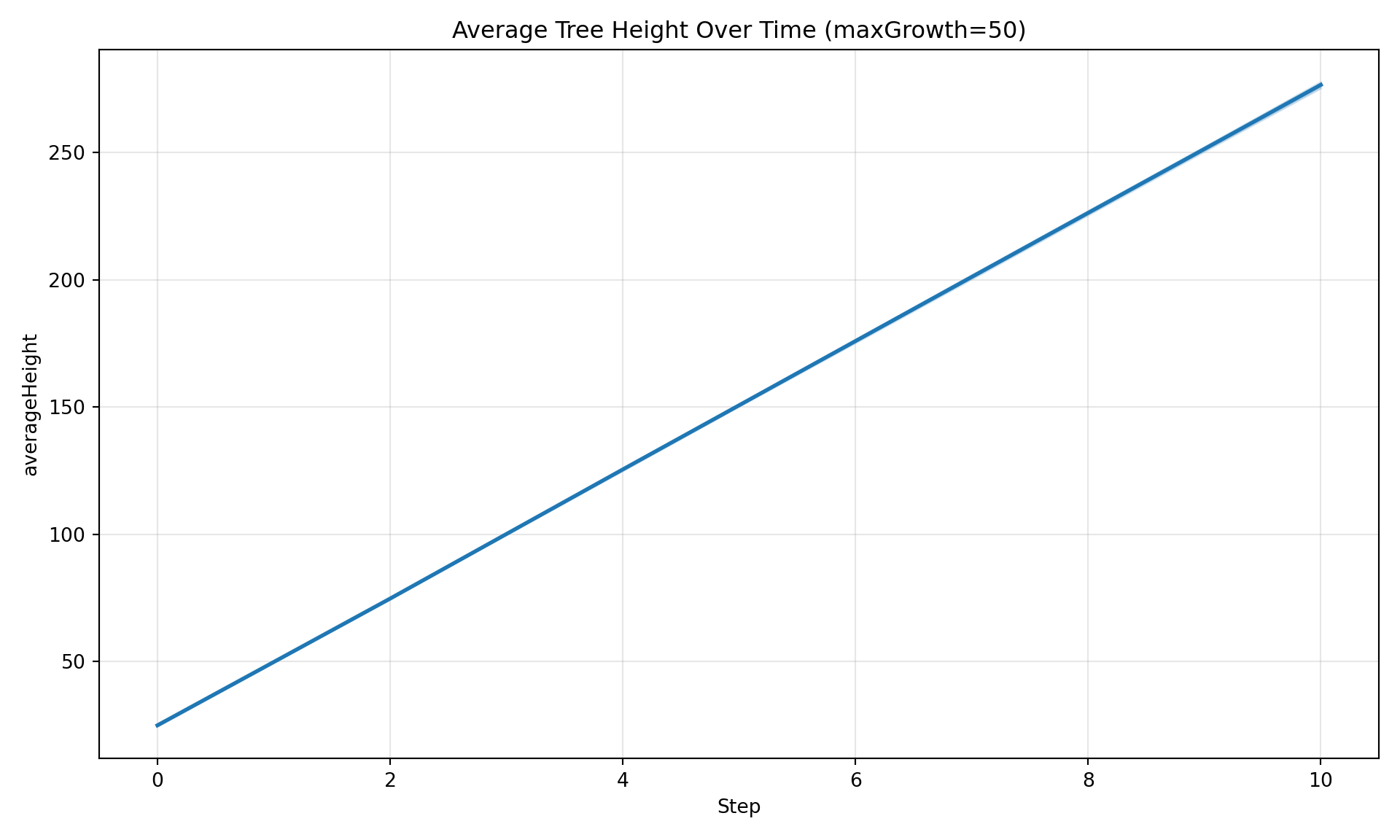
Plot how a variable evolves over simulation steps. By default, spatially aggregates across patches and shows uncertainty bands across replicates.
# Filter by parameter value
diag.plot_timeseries(
    "averageHeight",
    maxGrowth=50,
    title="Average Tree Height Over Time (maxGrowth=50)",
)
Aggregation Options
# Sum across patches
diag.plot_timeseries("averageHeight", maxGrowth=50, aggregate="sum", title="Sum")
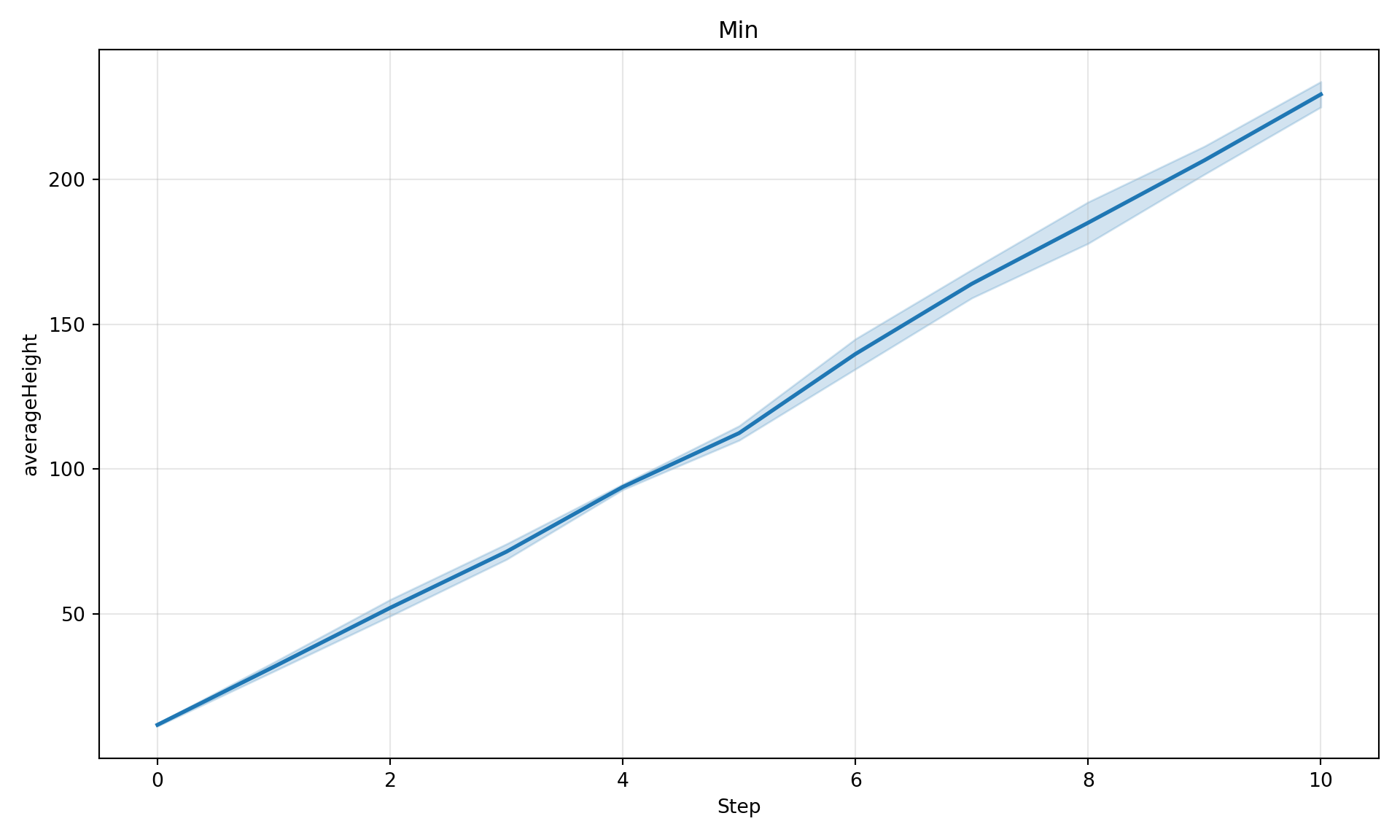
# Min across patches
diag.plot_timeseries("averageHeight", maxGrowth=50, aggregate="min", title="Min")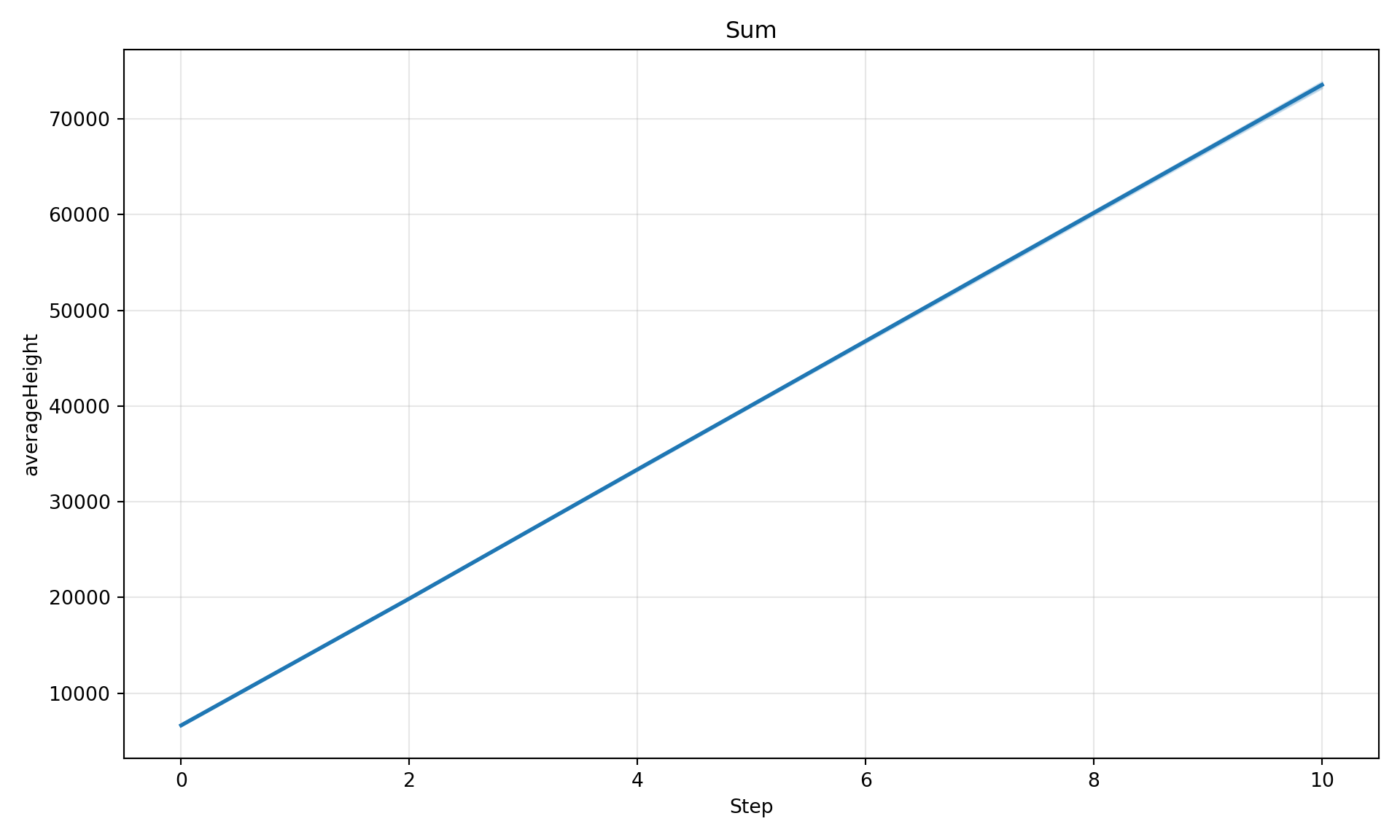
Parameter Comparison
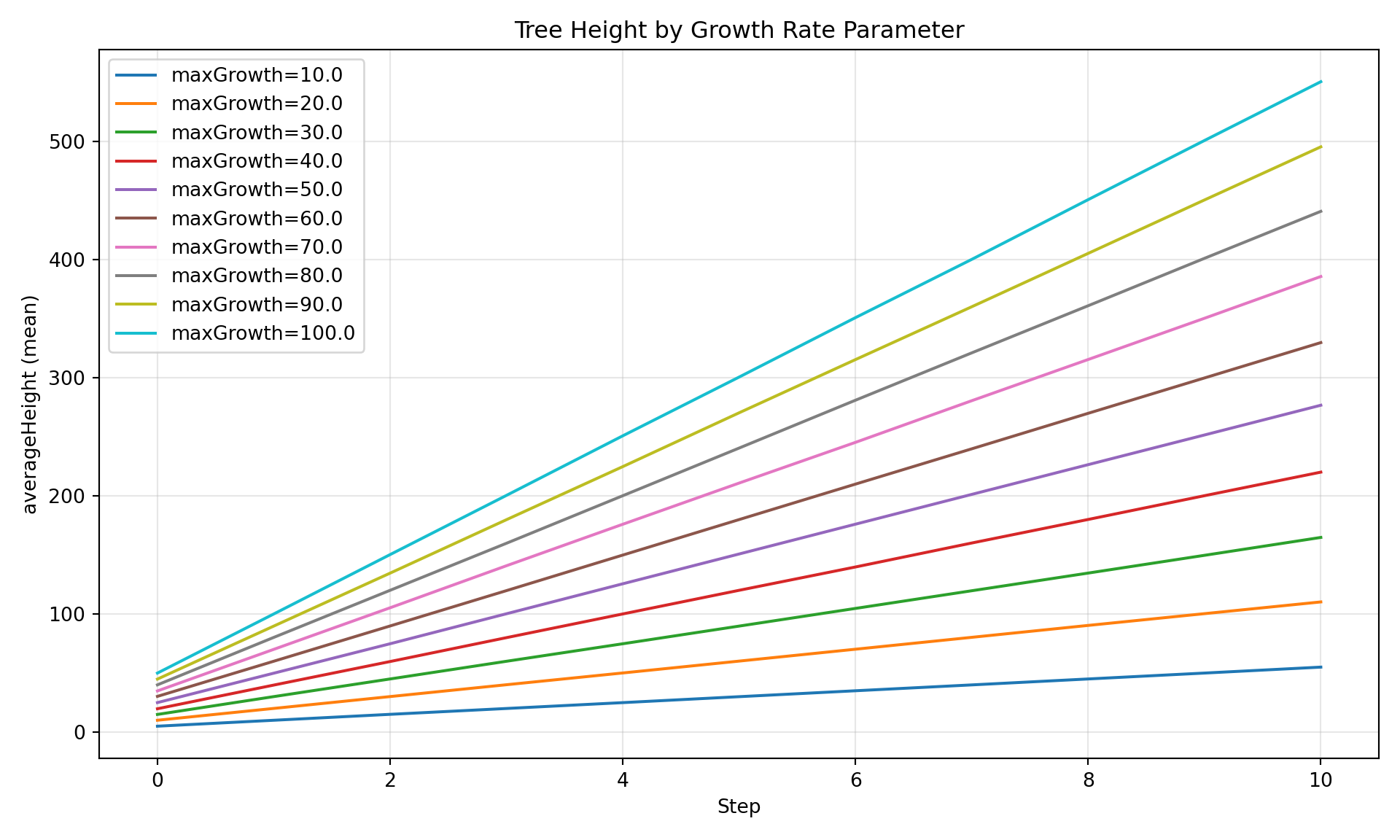
Compare a variable across different parameter values - ideal for sweep results.
diag.plot_comparison(
    "averageHeight",
    group_by="maxGrowth",
    title="Tree Height by Growth Rate Parameter",
)
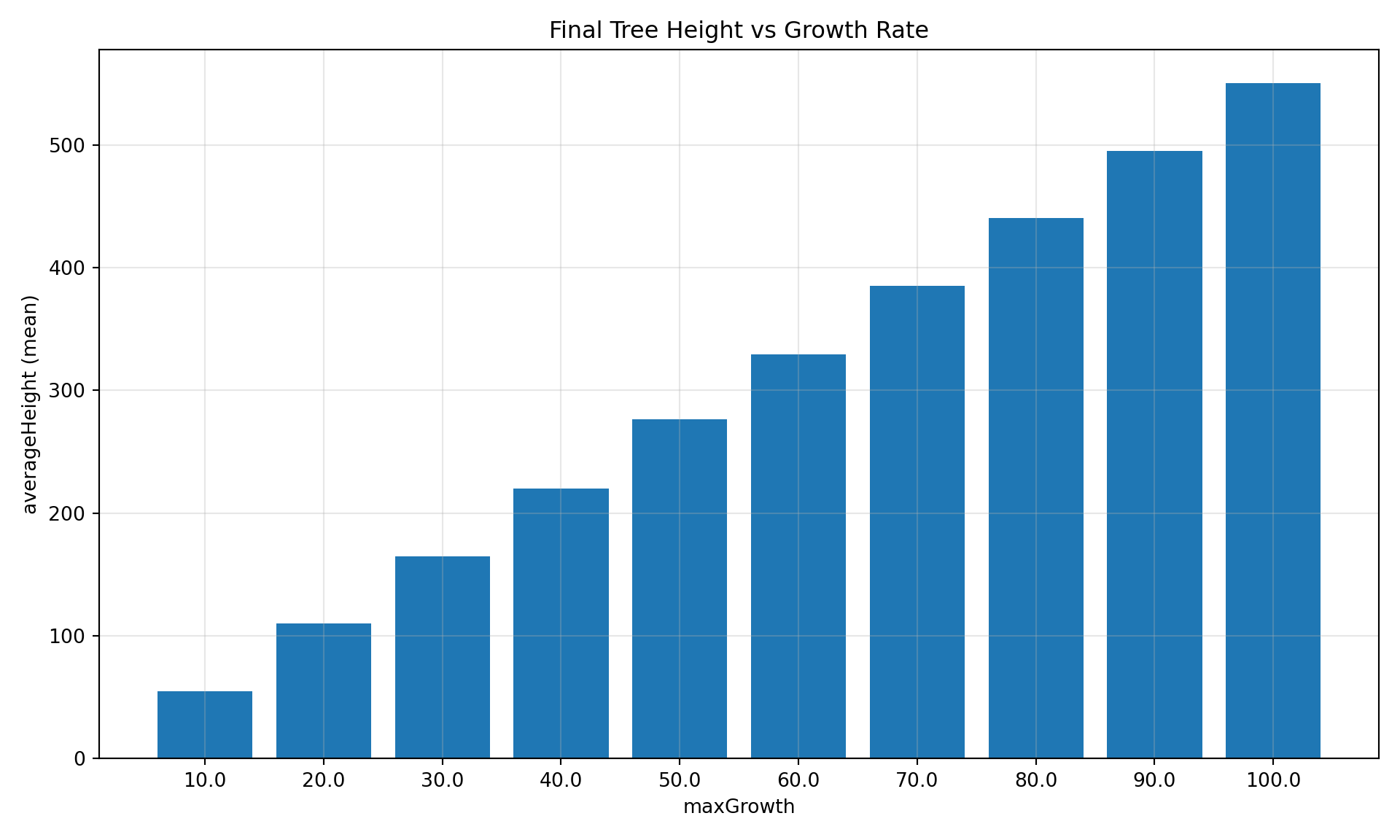
Bar Chart at Specific Step
diag.plot_comparison(
    "averageHeight",
    group_by="maxGrowth",
    step=10,
    title="Final Tree Height vs Growth Rate",
)
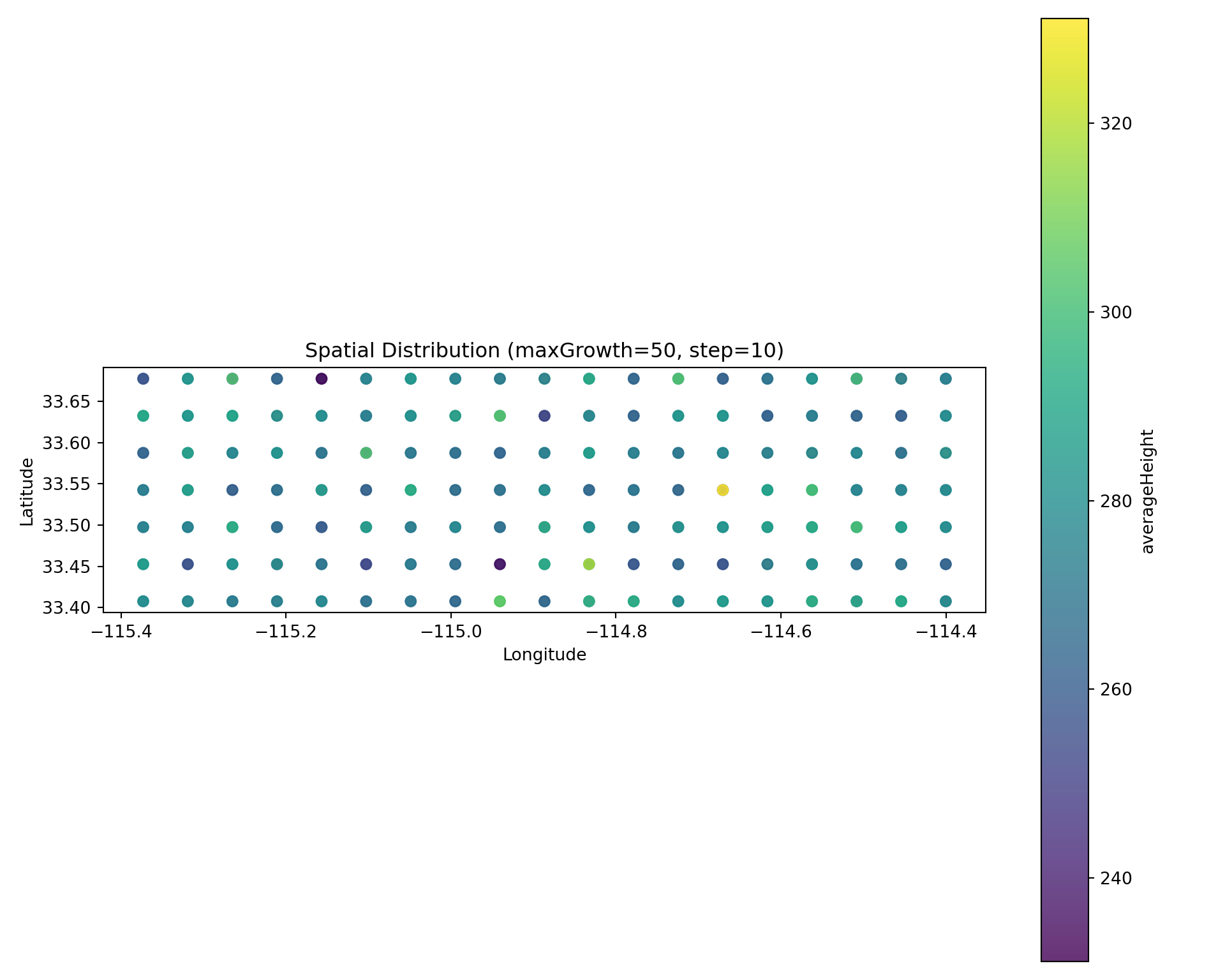
Spatial Snapshot
Scatter plot colored by value at a specific timestep:
# Get a run hash for maxGrowth=50
run_hash_50 = registry.get_runs_by_parameters(maxGrowth=50)[0]["run_hash"]

diag.plot_spatial(
    "averageHeight",
    step=10,
    run_hash=run_hash_50,
    title="Spatial Distribution (maxGrowth=50, step=10)",
)
Saving Figures
All plot methods return a matplotlib Figure that can be saved:
fig = diag.plot_comparison(
    "averageHeight",
    group_by="maxGrowth",
    show=False,  # Don't display inline
)
fig.savefig("/tmp/comparison_plot.png", dpi=150, bbox_inches="tight")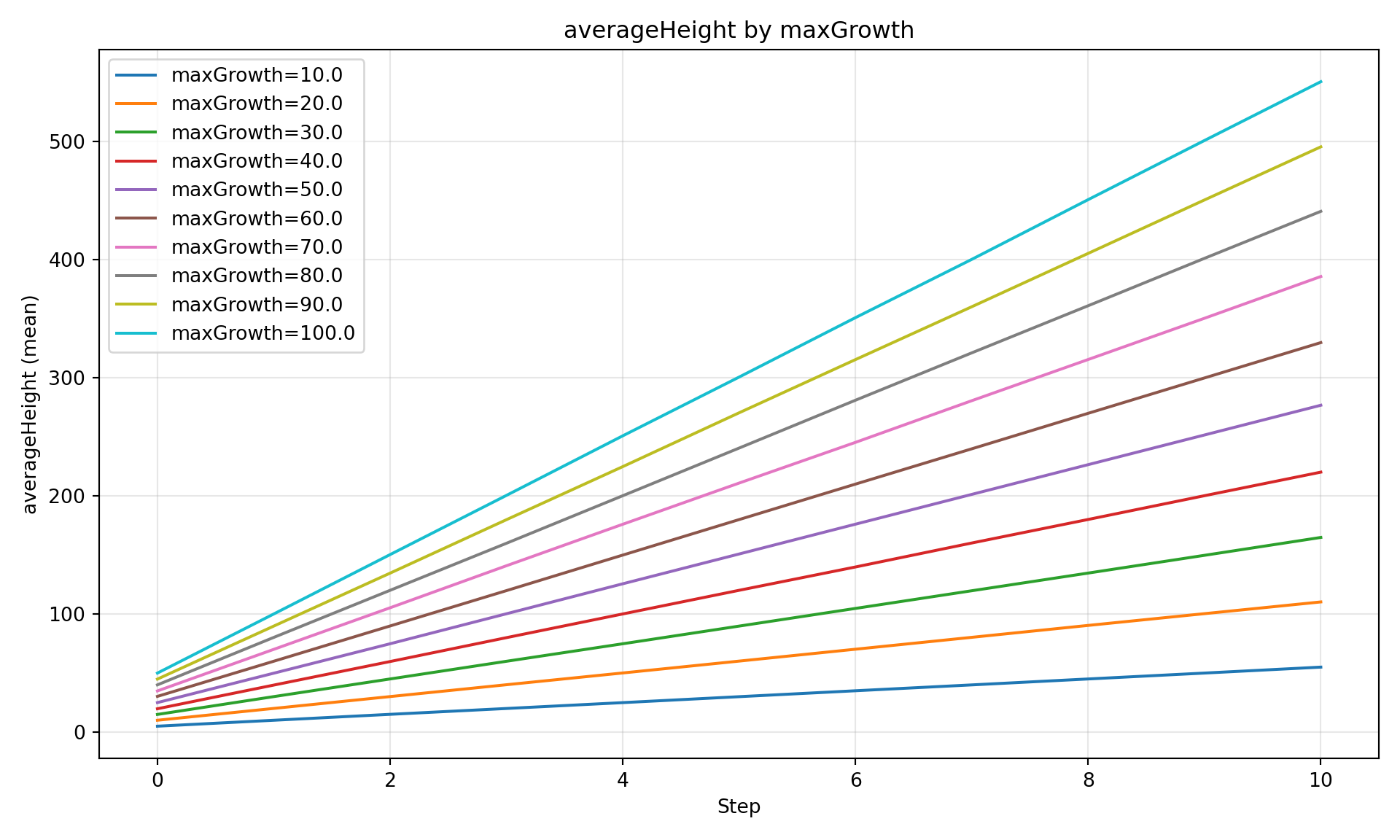
Part 3: Custom Queries (DiagnosticQueries)
For more control than SimulationDiagnostics, use DiagnosticQueries directly. These return pandas DataFrames for further processing.
from joshpy.cell_data import DiagnosticQueries

queries = DiagnosticQueries(registry)
Parameter Comparison
df = queries.get_parameter_comparison(
    variable="averageHeight",
    param_name="maxGrowth",
)
df.head(15)| param_value | step | mean_value | std_value | n_cells | |
|---|---|---|---|---|---|
| 0 | 10.0 | 0 | 4.990825 | 0.914275 | 399 |
| 1 | 10.0 | 1 | 10.054546 | 1.244391 | 399 |
| 2 | 10.0 | 2 | 15.012953 | 1.548240 | 399 |
| 3 | 10.0 | 3 | 20.005701 | 1.847471 | 399 |
| 4 | 10.0 | 4 | 25.058594 | 2.014672 | 399 |
| 5 | 10.0 | 5 | 30.031544 | 2.194709 | 399 |
| 6 | 10.0 | 6 | 35.077375 | 2.397354 | 399 |
| 7 | 10.0 | 7 | 40.056394 | 2.636158 | 399 |
| 8 | 10.0 | 8 | 45.132441 | 2.798784 | 399 |
| 9 | 10.0 | 9 | 50.117931 | 2.962958 | 399 |
| 10 | 10.0 | 10 | 55.069338 | 3.150577 | 399 |
| 11 | 20.0 | 0 | 9.771987 | 1.809808 | 399 |
| 12 | 20.0 | 1 | 19.800545 | 2.610955 | 399 |
| 13 | 20.0 | 2 | 29.743859 | 3.267051 | 399 |
| 14 | 20.0 | 3 | 39.724835 | 3.775138 | 399 |
Replicate Uncertainty
Get statistics across replicates for a specific run:
df = queries.get_replicate_uncertainty(
    variable="averageHeight",
    run_hash=run_hash_50,
)
df.head(10)| step | mean | std | ci_low | ci_high | n_replicates | |
|---|---|---|---|---|---|---|
| 0 | 0 | 25.044947 | 0.473936 | 24.508648 | 25.581246 | 3 |
| 1 | 1 | 50.248364 | 0.317795 | 49.888752 | 50.607976 | 3 |
| 2 | 2 | 75.673786 | 0.321899 | 75.309530 | 76.038042 | 3 |
| 3 | 3 | 100.530033 | 0.484435 | 99.981854 | 101.078212 | 3 |
| 4 | 4 | 125.526812 | 0.348489 | 125.132467 | 125.921157 | 3 |
| 5 | 5 | 150.787472 | 0.325004 | 150.419702 | 151.155242 | 3 |
| 6 | 6 | 175.415496 | 0.752038 | 174.564501 | 176.266491 | 3 |
| 7 | 7 | 200.361078 | 0.728033 | 199.537246 | 201.184910 | 3 |
| 8 | 8 | 225.421147 | 0.736903 | 224.587278 | 226.255017 | 3 |
| 9 | 9 | 250.298304 | 0.804500 | 249.387943 | 251.208665 | 3 |
Spatial Snapshot
Get all spatial data for a given timestep:
df = queries.get_spatial_snapshot(
    step=10,
    variable="averageHeight",
    run_hash=run_hash_50,
)
df.head(10)| longitude | latitude | value | |
|---|---|---|---|
| 0 | -114.508196 | 33.452687 | 269.959912 |
| 1 | -115.210829 | 33.497653 | 287.364517 |
| 2 | -115.102732 | 33.452687 | 276.273301 |
| 3 | -114.778439 | 33.632551 | 272.278324 |
| 4 | -114.778439 | 33.587585 | 271.014116 |
| 5 | -115.318927 | 33.542619 | 276.615131 |
| 6 | -114.562244 | 33.407720 | 268.089078 |
| 7 | -114.508196 | 33.542619 | 276.041247 |
| 8 | -114.724391 | 33.542619 | 255.923528 |
| 9 | -115.210829 | 33.587585 | 309.713661 |
Get All Variables at Once
Retrieve all exported variables for a specific step:
df = queries.get_all_variables_at_step(
    step=10,
    run_hash=run_hash_50,
)
df.head(5)| longitude | latitude | position_x | position_y | averageAge | averageHeight | |
|---|---|---|---|---|---|---|
| 0 | -114.508196 | 33.452687 | 16.5 | 5.5 | 11.0 | 269.959912 |
| 1 | -115.210829 | 33.497653 | 3.5 | 4.5 | 11.0 | 287.364517 |
| 2 | -115.102732 | 33.452687 | 5.5 | 5.5 | 11.0 | 276.273301 |
| 3 | -114.778439 | 33.632551 | 11.5 | 1.5 | 11.0 | 272.278324 |
| 4 | -114.778439 | 33.587585 | 11.5 | 2.5 | 11.0 | 271.014116 |
Part 4: Direct SQL Queries
For full flexibility, query DuckDB directly.
Simple Aggregations
# Mean, min, max across all cells per step
result = registry.query("""
    SELECT
        step,
        AVG(averageHeight) as mean_height,
        MIN(averageHeight) as min_height,
        MAX(averageHeight) as max_height,
        STDDEV(averageHeight) as std_height,
        COUNT(*) as n_cells
    FROM cell_data
    GROUP BY step
    ORDER BY step
""")
result.df()| step | mean_height | min_height | max_height | std_height | n_cells | |
|---|---|---|---|---|---|---|
| 0 | 0 | 27.681788 | 2.821725 | 78.752073 | 15.629399 | 3990 |
| 1 | 1 | 55.242309 | 6.998114 | 136.550564 | 29.959751 | 3990 |
| 2 | 2 | 82.821625 | 10.546986 | 197.042799 | 44.345770 | 3990 |
| 3 | 3 | 110.122145 | 15.145431 | 246.139270 | 58.432869 | 3990 |
| 4 | 4 | 137.700887 | 18.950683 | 308.720026 | 72.853441 | 3990 |
| 5 | 5 | 165.319256 | 23.451497 | 359.712621 | 87.244514 | 3990 |
| 6 | 6 | 192.829216 | 27.630700 | 418.271207 | 101.571358 | 3990 |
| 7 | 7 | 220.272909 | 29.934035 | 479.443895 | 115.935966 | 3990 |
| 8 | 8 | 247.873201 | 33.037224 | 530.481536 | 130.335174 | 3990 |
| 9 | 9 | 275.381847 | 37.641517 | 587.912941 | 144.757198 | 3990 |
| 10 | 10 | 302.720721 | 42.661982 | 644.653712 | 159.088170 | 3990 |
Filtering on Variable Values
# Find cells where trees grew above a threshold
result = registry.query("""
    SELECT
        step,
        COUNT(*) as n_cells_above_50,
        AVG(averageHeight) as mean_height_of_those
    FROM cell_data
    WHERE averageHeight > 50
    GROUP BY step
    ORDER BY step
""")
result.df()| step | n_cells_above_50 | mean_height_of_those | |
|---|---|---|---|
| 0 | 0 | 365 | 56.565190 |
| 1 | 1 | 2163 | 78.597847 |
| 2 | 2 | 2841 | 104.594483 |
| 3 | 3 | 3179 | 130.525999 |
| 4 | 4 | 3385 | 156.514972 |
| 5 | 5 | 3585 | 180.574037 |
| 6 | 6 | 3591 | 210.357199 |
| 7 | 7 | 3591 | 240.296967 |
| 8 | 8 | 3610 | 269.244289 |
| 9 | 9 | 3802 | 286.643922 |
| 10 | 10 | 3971 | 303.936274 |
Percentile Analysis
# Get distribution statistics per step
result = registry.query("""
    SELECT
        step,
        APPROX_QUANTILE(averageHeight, 0.25) as p25,
        APPROX_QUANTILE(averageHeight, 0.50) as median,
        APPROX_QUANTILE(averageHeight, 0.75) as p75,
        APPROX_QUANTILE(averageHeight, 0.95) as p95
    FROM cell_data
    GROUP BY step
    ORDER BY step
""")
result.df()| step | p25 | median | p75 | p95 | |
|---|---|---|---|---|---|
| 0 | 0 | 14.603601 | 26.594013 | 39.414013 | 54.510150 |
| 1 | 1 | 29.880371 | 54.580641 | 79.148126 | 104.793557 |
| 2 | 2 | 45.072850 | 82.426778 | 119.524511 | 153.619784 |
| 3 | 3 | 60.105815 | 109.673034 | 159.243393 | 202.819378 |
| 4 | 4 | 74.816438 | 136.922768 | 198.987215 | 252.059392 |
| 5 | 5 | 90.171734 | 164.280947 | 239.519276 | 301.707617 |
| 6 | 6 | 105.229610 | 191.610866 | 280.087840 | 350.872525 |
| 7 | 7 | 119.829756 | 219.377950 | 320.230818 | 400.050208 |
| 8 | 8 | 135.308450 | 246.712727 | 359.629457 | 450.522048 |
| 9 | 9 | 150.404325 | 273.748778 | 400.159652 | 500.730780 |
| 10 | 10 | 164.853972 | 300.675263 | 440.601935 | 550.360618 |
Joining with Config Parameters
Config parameters are stored as typed columns in the config_parameters table:
# Compare results across different parameter values
result = registry.query("""
    SELECT
        cp.maxGrowth,
        cd.step,
        AVG(cd.averageHeight) as mean_height,
        STDDEV(cd.averageHeight) as std_height
    FROM cell_data cd
    JOIN config_parameters cp ON cd.run_hash = cp.run_hash
    GROUP BY cp.maxGrowth, cd.step
    ORDER BY cp.maxGrowth, cd.step
""")
result.df().head(15)| maxGrowth | step | mean_height | std_height | |
|---|---|---|---|---|
| 0 | 10.0 | 0 | 4.990825 | 0.914275 |
| 1 | 10.0 | 1 | 10.054546 | 1.244391 |
| 2 | 10.0 | 2 | 15.012953 | 1.548240 |
| 3 | 10.0 | 3 | 20.005701 | 1.847471 |
| 4 | 10.0 | 4 | 25.058594 | 2.014672 |
| 5 | 10.0 | 5 | 30.031544 | 2.194709 |
| 6 | 10.0 | 6 | 35.077375 | 2.397354 |
| 7 | 10.0 | 7 | 40.056394 | 2.636158 |
| 8 | 10.0 | 8 | 45.132441 | 2.798784 |
| 9 | 10.0 | 9 | 50.117931 | 2.962958 |
| 10 | 10.0 | 10 | 55.069338 | 3.150577 |
| 11 | 20.0 | 0 | 9.771987 | 1.809808 |
| 12 | 20.0 | 1 | 19.800545 | 2.610955 |
| 13 | 20.0 | 2 | 29.743859 | 3.267051 |
| 14 | 20.0 | 3 | 39.724835 | 3.775138 |
# Filter by parameter value (maxGrowth > 50)
result = registry.query("""
    SELECT
        cd.step,
        AVG(cd.averageHeight) as mean_height
    FROM cell_data cd
    JOIN config_parameters cp ON cd.run_hash = cp.run_hash
    WHERE cp.maxGrowth > 50
    GROUP BY cd.step
    ORDER BY cd.step
""")
result.df()| step | mean_height | |
|---|---|---|
| 0 | 0 | 40.272835 |
| 1 | 1 | 80.377612 |
| 2 | 2 | 120.359578 |
| 3 | 3 | 159.985498 |
| 4 | 4 | 200.152581 |
| 5 | 5 | 240.329104 |
| 6 | 6 | 280.418718 |
| 7 | 7 | 320.387910 |
| 8 | 8 | 360.484870 |
| 9 | 9 | 400.502498 |
| 10 | 10 | 440.331969 |
Export to File
# Export query results to CSV
registry.query("""
    SELECT step, AVG(averageHeight) as mean_height
    FROM cell_data
    GROUP BY step
    ORDER BY step
""").df().to_csv("/tmp/height_by_step.csv", index=False)
Part 5: R/ggplot2 Visualization
For publication-quality figures, there are three routes to get data from joshpy into R:
- CSV Export - Simple, always works
- Direct DuckDB - Custom SQL queries from R, no Python needed
py$dfvia reticulate - Zero-copy Python/R interop
Route 1: Export to CSV (Simple, Always Works)
# Python exports to CSV
csv_df = queries.get_parameter_comparison(
    variable="averageHeight",
    param_name="maxGrowth",
)
csv_df.to_csv("/tmp/sweep_results.csv", index=False)
# R reads CSV
df_csv <- read.csv("/tmp/sweep_results.csv")
df_csv$param_value <- as.numeric(df_csv$param_value)
head(df_csv, 5) param_value step mean_value std_value n_cells
1 10 0 4.990825 0.9142747 399
2 10 1 10.054546 1.2443914 399
3 10 2 15.012953 1.5482401 399
4 10 3 20.005701 1.8474706 399
5 10 4 25.058594 2.0146724 399Pros: Always works, simple, portable
Cons: File I/O overhead, temp file management
Route 2: Direct DuckDB from R (Custom Queries)
R can query DuckDB directly with full SQL flexibility:
library(DBI)
library(duckdb)

con <- dbConnect(duckdb(), "demo_registry.duckdb", read_only = TRUE)

df_duckdb <- dbGetQuery(con, "
    SELECT
        cp.maxGrowth as param_value,
        cd.step,
        AVG(cd.averageHeight) as mean_value,
        STDDEV(cd.averageHeight) as std_value
    FROM cell_data cd
    JOIN config_parameters cp ON cd.run_hash = cp.run_hash
    GROUP BY cp.maxGrowth, cd.step
    ORDER BY cp.maxGrowth, cd.step
")

dbDisconnect(con, shutdown = TRUE)
head(df_duckdb, 10)
param_value step mean_value std_value
1 10 0 4.990825 0.9142747
2 10 1 10.054546 1.2443914
3 10 2 15.012953 1.5482401
4 10 3 20.005701 1.8474706
5 10 4 25.058594 2.0146724
6 10 5 30.031544 2.1947085
7 10 6 35.077375 2.3973544
8 10 7 40.056394 2.6361577
9 10 8 45.132441 2.7987839
10 10 9 50.117931 2.9629578Pros: Full SQL flexibility, no Python needed for custom queries
Cons: Requires r-duckdb package (linux-64 only in pixi)
Route 3: py$df via reticulate (Zero-Copy)
In theory, you can access Python DataFrames directly via py$df:
# This should work:
# df <- reticulate::py_to_r(py$sweep_df)
We’re working on this - for now, Routes 1 and 2 are recommended.
Plotting with ggplot2
The following examples use df_duckdb from Route 2 (direct DuckDB query). We assign it to df for cleaner ggplot code:
# Use the DuckDB query result for plotting
df <- df_duckdb
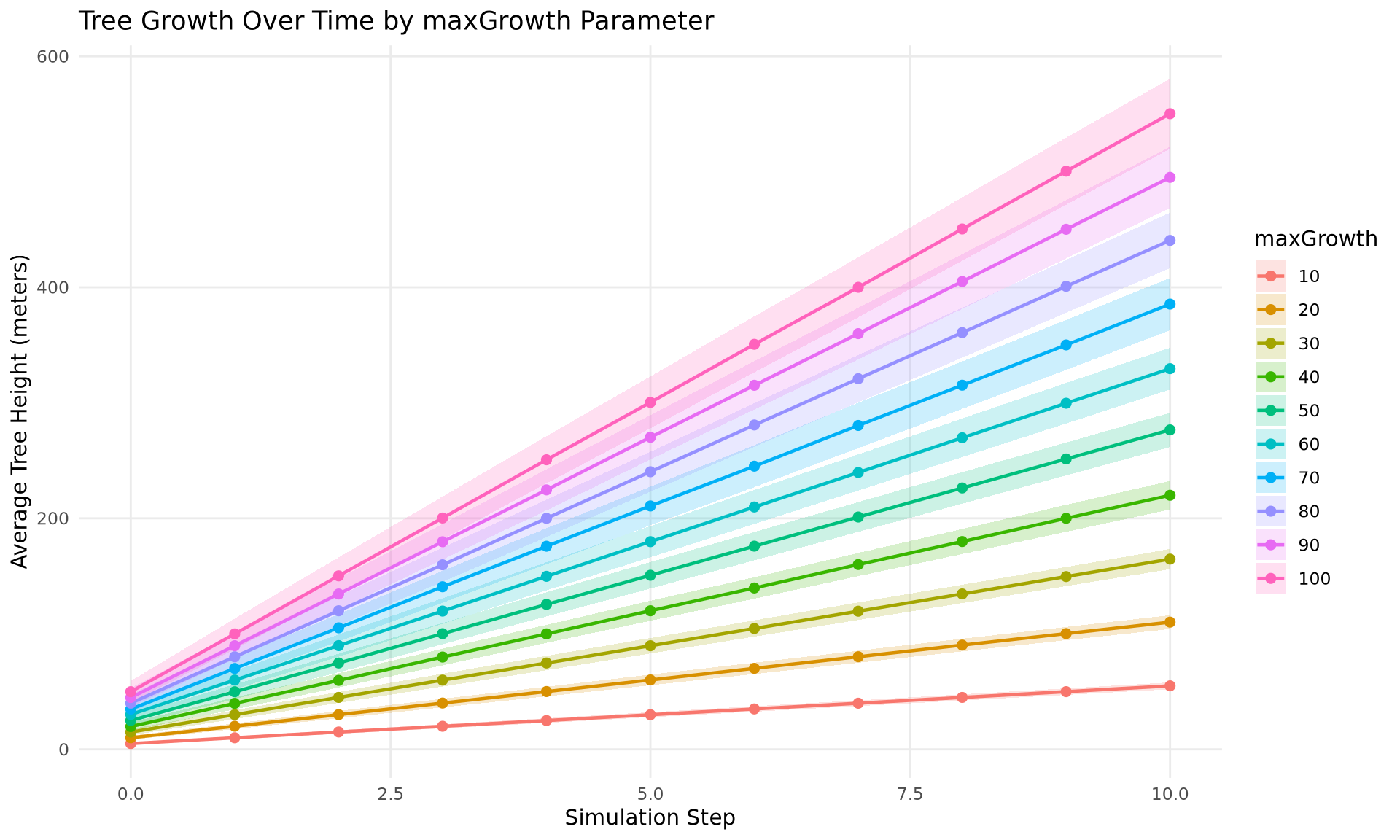
Time Series with Uncertainty Ribbon
ggplot(df, aes(x = step, y = mean_value,
                     color = factor(param_value),
                     fill = factor(param_value))) +
  geom_ribbon(aes(ymin = mean_value - std_value,
                  ymax = mean_value + std_value),
              alpha = 0.2, color = NA) +
  geom_line(linewidth = 0.8) +
  geom_point(size = 2) +
  labs(
    x = "Simulation Step",
    y = "Average Tree Height (meters)",
    title = "Tree Growth Over Time by maxGrowth Parameter",
    color = "maxGrowth",
    fill = "maxGrowth"
  ) +
  theme_minimal() +
  theme(
    legend.position = "right",
    panel.grid.minor = element_blank()
  )
Bar Chart with Error Bars
final_df <- df |>
  dplyr::filter(step == max(step))

ggplot(final_df, aes(x = param_value, y = mean_value)) +
  geom_col(fill = "steelblue", alpha = 0.7) +
  geom_errorbar(
    aes(ymin = mean_value - std_value, ymax = mean_value + std_value),
    width = 3,
    linewidth = 0.6
  ) +
  labs(
    x = "maxGrowth (meters/step)",
    y = "Final Average Height (meters)",
    title = "Final Tree Height vs Growth Rate"
  ) +
  theme_minimal() +
  theme(panel.grid.minor = element_blank())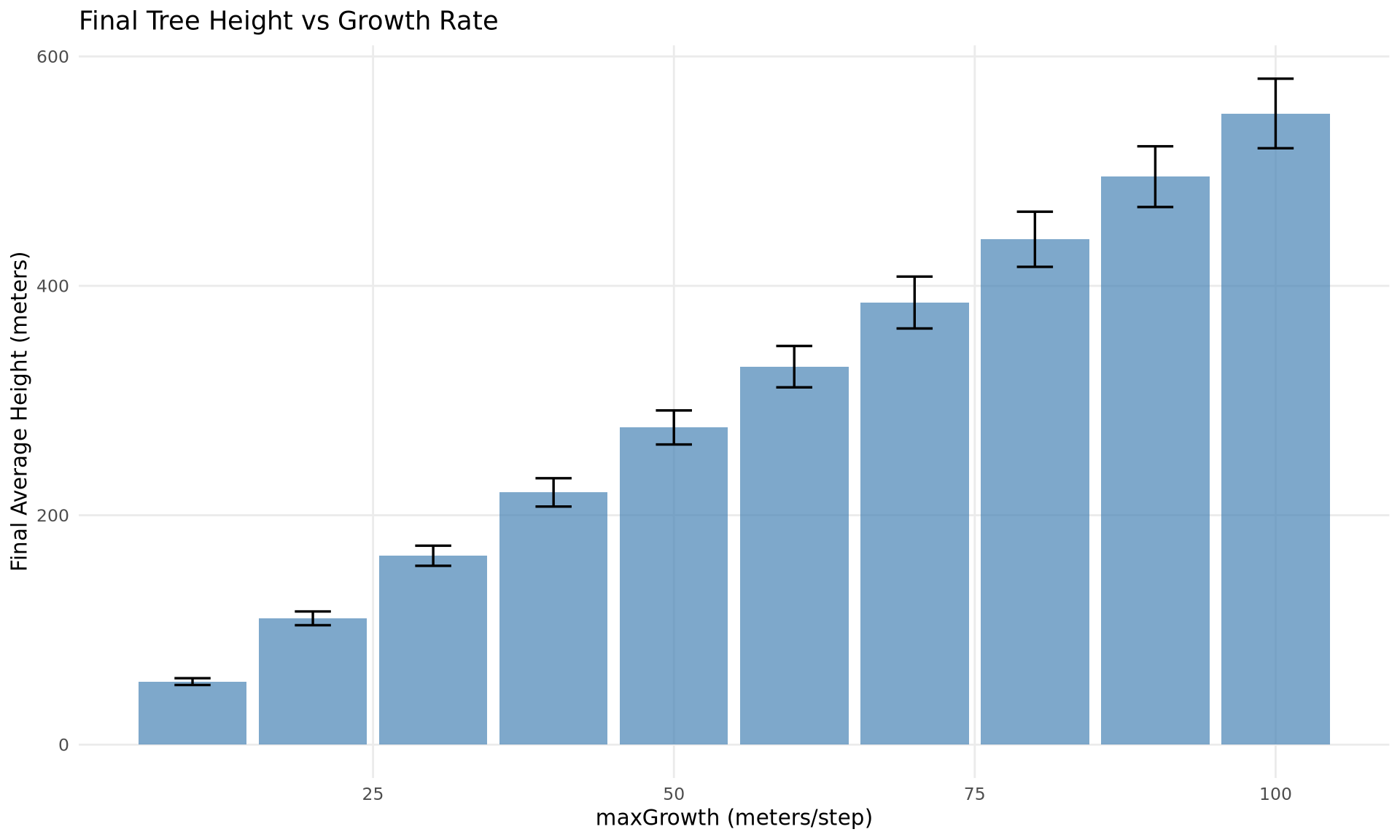
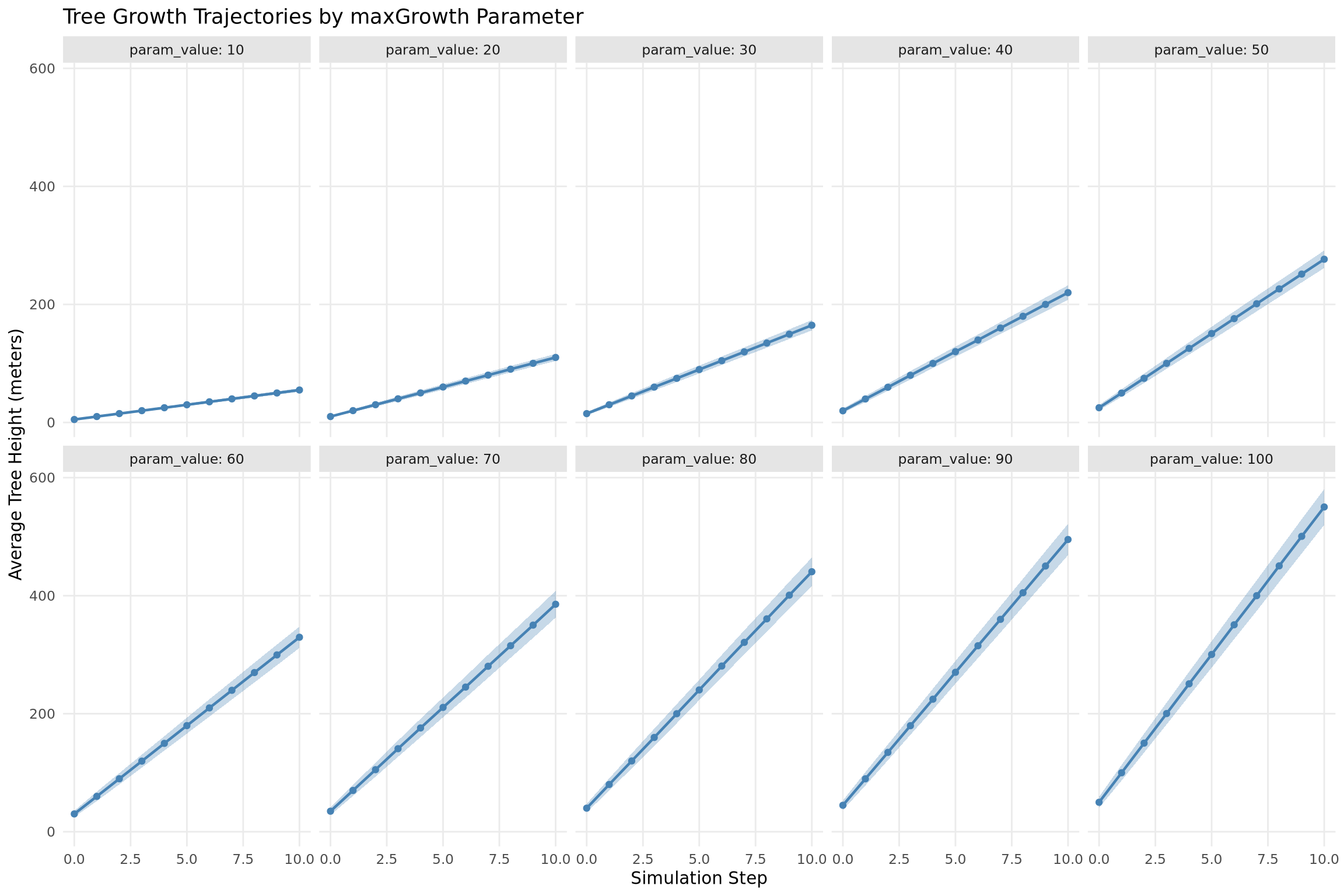
Faceted Plot
ggplot(df, aes(x = step, y = mean_value)) +
  geom_ribbon(aes(ymin = mean_value - std_value,
                  ymax = mean_value + std_value),
              alpha = 0.3, fill = "steelblue") +
  geom_line(color = "steelblue", linewidth = 0.8) +
  geom_point(color = "steelblue", size = 1.5) +
  facet_wrap(~param_value, ncol = 5, labeller = label_both) +
  labs(
    x = "Simulation Step",
    y = "Average Tree Height (meters)",
    title = "Tree Growth Trajectories by maxGrowth Parameter"
  ) +
  theme_minimal() +
  theme(
    panel.grid.minor = element_blank(),
    strip.background = element_rect(fill = "gray90", color = NA)
  )
Summary
This demo covered the joshpy analysis workflow:
| Task | Tool | Notes |
|---|---|---|
| Discovery | registry.get_data_summary() |
What’s in the registry? |
| Quick plots | SimulationDiagnostics |
matplotlib-based, fast iteration |
| DataFrames | DiagnosticQueries |
Returns pandas for further processing |
| Full SQL | registry.query() |
Direct DuckDB access |
| R (CSV) | read.csv() |
Simple, always works |
| R (DuckDB) | dbConnect(duckdb(), ...) |
Custom SQL directly from R |
| R (reticulate) | py$df |
Zero-copy Python/R interop |
Key Points:
- Analysis is decoupled from orchestration - same workflow for any data source
- Export variables are typed columns in
cell_data - Config parameters are typed columns in
config_parameters - R can query DuckDB directly
- Three routes for R: CSV export, direct DuckDB, or
py$dfvia reticulate
Cleanup
registry.close()